
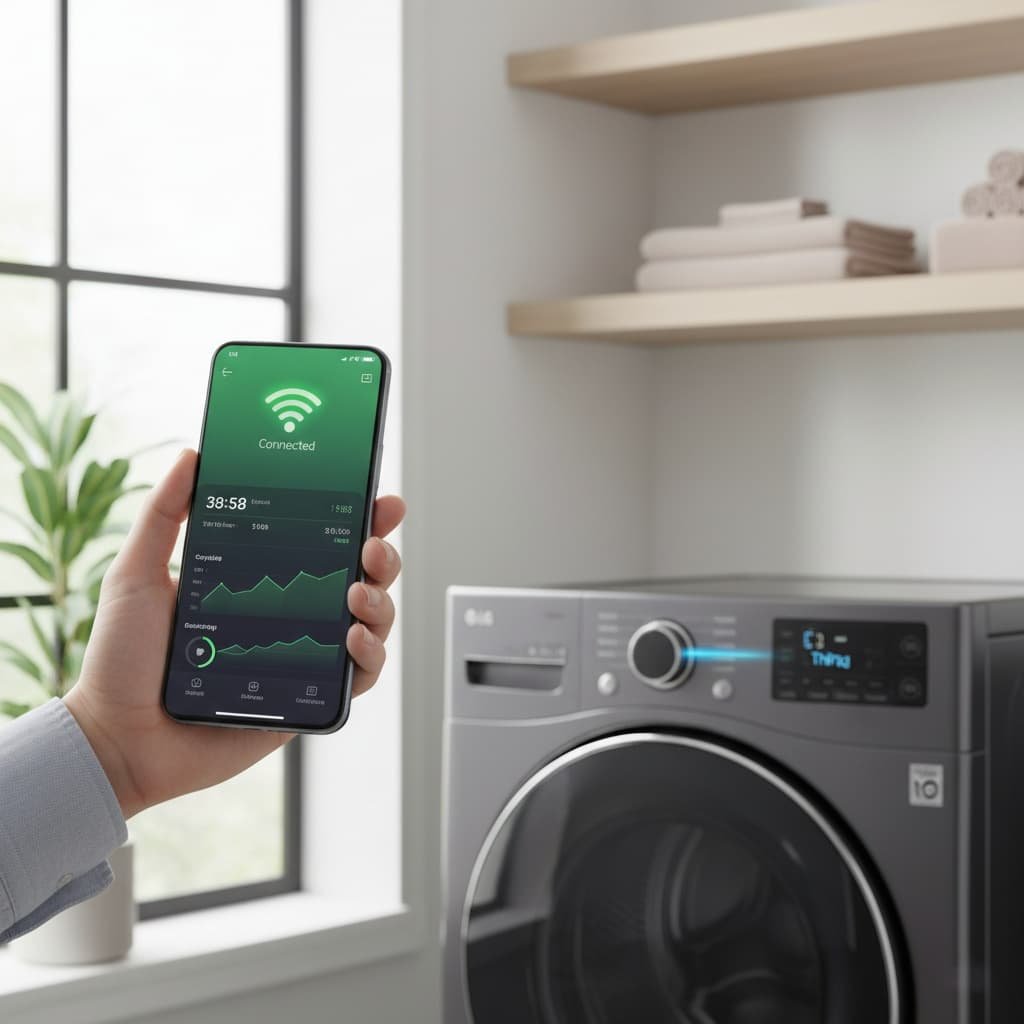
If your LG washing machine won’t connect to Wi-Fi, the cause is almost never the washer itself; it’s usually your phone talking to the wrong radio band or your router doing something reasonable that LG’s setup process doesn’t handle gracefully. This guide walks through the actual fixes in the order I’d try them as a technician, not just a list of generic tips.
Table of Contents
1. Why LG Washing Machines Use Wi-Fi
Wi-Fi allows your LG washing machine to connect with the LG ThinQ app. You can:
- Start or stop cycles remotely.
- Get notifications when a load finishes.
- Monitor energy use and water consumption: LG’s current ThinQ platform includes real-time, per-cycle energy tracking rather than just estimated totals, which is worth knowing if you’re troubleshooting a connection specifically to check this.
- Download specialized washing cycles.
- Run Smart Diagnosis if something mechanical seems off (more on this below).
LG has also expanded ThinQ into a broader smart-home hub (ThinQ ON) in recent years, so on newer setups your washer’s Wi-Fi connection may be doing more than just talking to one app, which is worth keeping in mind if troubleshooting steps ever reference a hub device rather than just the washer and your phone.
👉 [LG washing machine reviews, comparing smart models]
2. Common LG Washing Machine Wi-Fi Connection Issues
Most Wi-Fi problems fall into predictable categories:
- Incorrect Wi-Fi frequency: LG washers connect only to 2.4 GHz networks, not 5 GHz.
- Weak router signal: Poor placement reduces connectivity.
- App glitches: Outdated ThinQ app versions may cause errors.
- Washer firmware issues: Old software blocks a smooth connection.
- Router settings: Disabled DHCP or a hidden SSID interferes with setup.
3. Before You Start: What Not to Interrupt
This isn’t a physical repair, so there’s no shock or water-shutoff risk here, but there are two things worth being careful about before you start troubleshooting:
- Never interrupt a firmware update. If the washer loses power mid-update, it can corrupt the control board’s software, turning a Wi-Fi problem into an actual service call. Keep it powered and plugged in until the update confirms completion.
- Don’t attempt to access or replace the internal Wi-Fi module yourself. If troubleshooting points to a hardware failure (see Section 9), that’s a component behind the panel that needs a technician, not a DIY swap.
4. Step-by-Step Wi-Fi Troubleshooting
Solving the “2.4 GHz Trap” (How to Force 2.4 GHz)
Most modern routers are “dual-band,” meaning they use one network name for both 2.4 GHz and 5 GHz. Since LG washers only recognize 2.4 GHz, your phone might stay on the 5 GHz band during setup, causing the connection to fail.
The fix: During initial setup, temporarily move to a different room, farther from your router. 5 GHz signals have a shorter range, so your phone will be forced onto the 2.4 GHz band, letting it “see” the washing machine and complete the handshake. Once connected, you can move back to your laundry room.

Update the LG ThinQ app.
- Go to the Google Play Store or Apple App Store.
- Install the latest update.
- Clear the app cache if errors persist.
Reset the Washer’s Wi-Fi settings.
On most LG washers, this is done from the control panel: hold the Wi-Fi button (or the combination specified in your model’s manual; it varies by control panel type) for several seconds until the Wi-Fi indicator blinks or turns off, confirming the network settings have cleared. From there, restart the ThinQ app’s device setup from scratch rather than trying to “reconnect” to a half-cleared profile; a partial reset is a common reason people get stuck in a loop of failed pairing attempts.
👉 [LG washing machine control panel types explained]
Verify Router Settings
- Enable DHCP for automatic IP assignment.
- Keep the SSID visible (don’t hide the network name).
- Ensure the router allows at least WPA2 security.
Reinstall the LG ThinQ App (if needed)
- Delete and reinstall the app.
- Re-add your washer during setup.
5. Quick Reference: Symptom, Cause, Fix
| Symptom | Likely Cause | Quick Fix |
| Washer never appears in the app during setup | Phone connected to 5 GHz, not 2.4 GHz | Move away from router during setup (Section 4) |
| Connects, then drops randomly | Weak signal or router interference | Reposition router or add an extender |
| App shows outdated cycle options or crashes | App or firmware out of date | Update both app and washer firmware |
| Wi-Fi icon stays off no matter what you try | Possible Wi-Fi module hardware failure | Contact service (Section 9) |
| Setup fails specifically on first connection attempt | Phone using mobile data instead of setup Wi-Fi | Disable mobile data during setup |
6. LG ThinQ App Error Codes (Quick Reference)
- Error Code 001: Incorrect Wi-Fi password.
- Error Code 002: No network detected.
- Error Code 005: Connection timed out.
- Error Code 007: Server issue.
These are the most common codes tied to connection setup specifically. For test values and the complete fix for each one, see our full ThinQ app error code guide rather than guessing from the code alone.
👉 [LG washing machine error code guide, full breakdown]

7. When to Update Your Washer’s Firmware
LG regularly releases firmware updates for smart washers. Updated software generally improves Wi-Fi stability and can improve energy efficiency, though the exact improvement varies by model and isn’t something I’d put a specific percentage on without LG’s own model-specific release notes in front of me.
Steps:
- Open the ThinQ app.
- Go to Settings > Update Firmware.
- Keep the washer powered on and connected during the entire update (see Section 3).

8. Practical Tips for Stronger Wi-Fi Performance
- Place your router on an open shelf, not behind walls.
- Limit interference from microwaves or cordless phones.
- Use a Wi-Fi extender if your laundry room is far from the router.
Insider note: If you live in a small apartment, an extender is probably unnecessary; the fix is almost always the 2.4GHz band issue in Section 4. For larger homes, especially two-story houses, an extender genuinely does solve app performance problems that band-switching alone won’t fix.

9. Repair vs. DIY Fix
Most Wi-Fi connection issues resolve with the steps above. Hiring a technician should be the last option, not the first call.
The question I’d ask before troubleshooting further: has this washer ever connected successfully before, or has it never connected at all? A unit that connected before and then dropped is almost always a router or network change on your end, a new router, a changed password, or an ISP outage. A unit that’s never connected points more toward setup timing (the 2.4GHz trap) or, less commonly, a genuine module issue.
Before calling for service, check:
- Router functionality.
- App updates.
- Washer’s Wi-Fi icon status.
If the icon stays off despite a full reset and correct band, you may be facing a Wi-Fi module failure, which requires service rather than further troubleshooting.
👉 [7 Common LG Washing Machine Problems and What They Mean]
10. FAQs: LG washing machine wifi not connecting
Q: Why does my LG washing machine only see 5 GHz networks during setup?
It’s not that the washer sees 5 GHz, your phone is likely still connected to your router’s 5 GHz band while trying to help the washer connect. Since LG washers only support 2.4 GHz, moving your phone farther from the router (Section 4) usually forces it onto the correct band.
Q: I updated the app, but the washer still won’t connect. What’s next?
Move on to a full Wi-Fi settings reset on the washer itself (Section 4), not just the app. An outdated app is one possible cause, but a half-completed prior setup attempt on the washer’s side is just as common and won’t be fixed by the app alone.
Q: Does resetting the washer’s Wi-Fi settings erase my saved cycles or preferences?
No, a Wi-Fi reset only clears the network connection profile, not your saved wash cycles, favorites, or machine settings. It’s specifically a networking reset, not a factory reset.
Q: My washer was connected for months and suddenly dropped. Did something break?
Not necessarily, and this is usually the easiest case to fix. Anything that changed on your network, a router replacement, a changed Wi-Fi password, or even an ISP-side outage, will disconnect a previously working washer. Start there before assuming a hardware issue.
Q: Can I use my washer’s Wi-Fi features without the ThinQ app installed?
No. The Wi-Fi connection exists specifically to communicate with the ThinQ app; without the app installed and paired, the washer simply runs its standard cycles with no remote features, which is functionally the same as a non-smart model.
Q: Is it safe to keep the washer’s Wi-Fi always on, or should I disable it when not needed?
It’s safe to leave it on continuously; that’s how it’s designed to operate, and it’s needed for firmware updates to reach the machine automatically. There’s no meaningful downside to leaving it connected.
Q: How do I know if it’s a Wi-Fi problem versus an actual mechanical fault being reported through the app?
If the Wi-Fi icon on the washer itself is solid/connected but the app is showing a mechanical alert or fault code, that’s a real diagnostic result from Smart Diagnosis, not a connectivity issue; the network is working fine, and the problem is with the machine itself.
The Bottom Line
Troubleshooting Pro-Tip: If your washer refuses to connect during initial setup, disable “Mobile Data” on your smartphone. Sometimes the phone tries to use 5G/LTE data instead of the washer’s temporary setup Wi-Fi signal, which breaks the connection before it can even start.
Staying updated on firmware and maintaining a strong 2.4GHz signal solves the overwhelming majority of LG washing machine Wi-Fi issues. If you’ve worked through every step here and the washer still won’t connect, that’s the point to contact LG support for a hardware-level check rather than continuing to troubleshoot on your own.
Still stuck after trying these steps? Tell me your model number and exactly what the app or display shows, and I’ll help you narrow it down in the comments.